
Bills, meet your match
Schedule, track and manage payments anytime, anywhere.

We are fiercely committed to you, every step of the way.
Join a team that values integrity and rewards ingenuity.
See our corporate overview.
Access our latest news, press releases and media resources.
Discover our bold, customer-first approach to banking.
Supporting communities through giving and volunteer efforts.
Meet the experienced team guiding our vision and growth.
Learn how we foster an inclusive, equitable workplace and community.
Hear real stories from our customers about their experiences.


 Search our site
We are fiercely committed to you, every step of the way.
Join a team that values integrity and rewards ingenuity.
See our corporate overview.
Access our latest news, press releases and media resources.
Discover our bold, customer-first approach to banking.
Supporting communities through giving and volunteer efforts.
Meet the experienced team guiding our vision and growth.
Learn how we foster an inclusive, equitable workplace and community.
Hear real stories from our customers about their experiences.
Manage business expenses with secure, streamlined payment solutions.
Streamline collections and improve cash flow with secure solutions.
Protect your business with advanced tools to detect and prevent fraud.
Core tools to manage cash flow and optimize liquidity.
Protect your accounts with advanced check and ACH fraud prevention.
Send payroll, vendor payments, or customer refunds securely and efficiently.
Accounts & tools you need for your business operations.
Set money aside today so you can take action when the time is right.
Earn higher interest on your cash reserves.
A secure and flexible way to grow your savings.
24/ access to your business accounts from your office, home or anywhere.
Account access in the palm of your hand.
A convenient way for your business to send and receive money.
No minimum balance, 300 free items, and easy mobile banking.
No minimum balance requirement, no monthly service fee, 24/7 digital access.
Offering vital protection for you and your finances.
Earn interest and receive high-value upgrades.
The perfect way to pay for purchases.
Tailored for student life and your unique needs.
Free checking with no fees and instant digital access - simple banking for busy families.
An account to build your savings to reach your goals.
Earn higher interest returns while maintaining easy access.
Teach children the value of saving money and create good habits.
A simple way to save for qualified medical expenses.
Annual contributions cover private school and college tuition.
Save at an accelerated rate to reach your goals quicker.
Build a nest egg for a brighter retirement.
Grow your money for future wedding plans, college expenses or home updates.
Manage short-term operating expenses, finance inventory, or bridge the gap between invoices and payments.
Funding to finance new or used equipment, machinery and more.
Streamlined premium financing solutions for your business.
Tailored loans to support your construction projects.
Government-backed financing to help your business grow.
Affordable financing options for rural business growth.
Capital solutions to support mortgage warehouse operations.
Comprehensive solutions to support your mortgage lending business.
Gain access to capital using mortgage servicing rights as collateral.
Guiding you through every step from application to closing with fast approvals and tailored support.
Flexible financing to help you purchase or expand a business.
Loans for purchasing, building, or refinancing properties.
Flexible lending and expert guidance to help you buy, build, or expand your property.
Affordable loans to purchase or upgrade business equipment.
Financing to help your business grow and reach new markets.
Fixed-rate financing for long-term business investments and growth.
Lending solutions to manage cash flow and stock your inventory.
Commercial business loans for operating expenses, equipment purchases, technology upgrades, and more.
Flexible financing to invest in equipment, locations, or working capital tailored for your business goals.
Explore business credit card options.
Money management right from your home.
Your digital branch right in your pocket.
Move money between accounts, between banks or to people you trust.
Monitor accounts with personalized email and mobile app notifications.
Safeguard your debit card from your mobile device.
Easily and securely send money to family and friends.
Easily track transactions, pause spending, or limit expenses - all from your device.
Helpful planning tools at every stage of the home buying process.
Unlock your dream home with an affordable down payment.
Reduce your monthly mortgage payment and build equity faster.
Choose from fixed and adjustable-rate mortgages, construction financing and more.
Government-backed home loan options to get you into your dream home.
Financial assistance to unlock your dream home.
Access the equity in your home for large expenses, unexpected costs, renovations and more.
Understand what happens, when it happens, and what you need along the way.
Secure, efficient payment solutions for your business.
Simplify expense management, improve cash flow, and keep personal and business finances separate.
Simplify payroll with secure, efficient processing solutions.
Explore credit card options for your finances.
Earn up to 3% cash back on every purchase. No annual fee. Unlimited cash card. Offer expires 1/31/27.
Financing for cars, trucks, SUVs, motorcycles, motorboats and more.
Borrow against your life insurance without getting a new loan.
Access the equity in your home for large expenses, unexpected costs, renovations and more.
Easy, affordable access to funds for everything on life's to-do list.
Preserve cash flow while securing the coverage you need.
You've got dreams, and we've got a way to help you get there.
Convenient banking benefits for employees at your workplace.
Explore articles to power your business's financial future.
Quick tools to help make informed estimates.
Financial planning advice tailored to your journey.
Watch helpful videos on banking tips, tools, and resources.
Cybersecurity tips to safeguard your company’s data and privacy.
Find quick answers to common banking questions.
Meet your business goals with tools and tips from Ameris Bank.
High-touch banking and specialized lending solutions for discerning clients.
Tailored for student life and your unique needs.
Explore articles to power your business's financial future.
Quick tools to help make informed estimates.
Financial planning advice tailored to your journey.
Watch helpful videos on banking tips, tools, and resources.
Cybersecurity tips to safeguard your company’s data and privacy.
Find quick answers to common banking questions.
Tap into our financial tools and resources to give your business an edge.
Explore articles to power your financial future.
Financial planning advice tailored to your journey.
Quick tools to estimate loans, savings, mortgage costs and more.
Stay safe online with tips to protect your data and privacy.
Watch helpful videos on banking tips, tools, and resources.
Find quick answers to common banking questions.
At Ameris, we focus on your finances so you can focus on your family.
Make quick, contactless payments with your phone or smart watch at participating retailers and select online merchants.*
Easy, convenient and more secure way to pay
Works with Apple Pay®, Google Pay™ and Samsung Pay®
Your private information is never shared
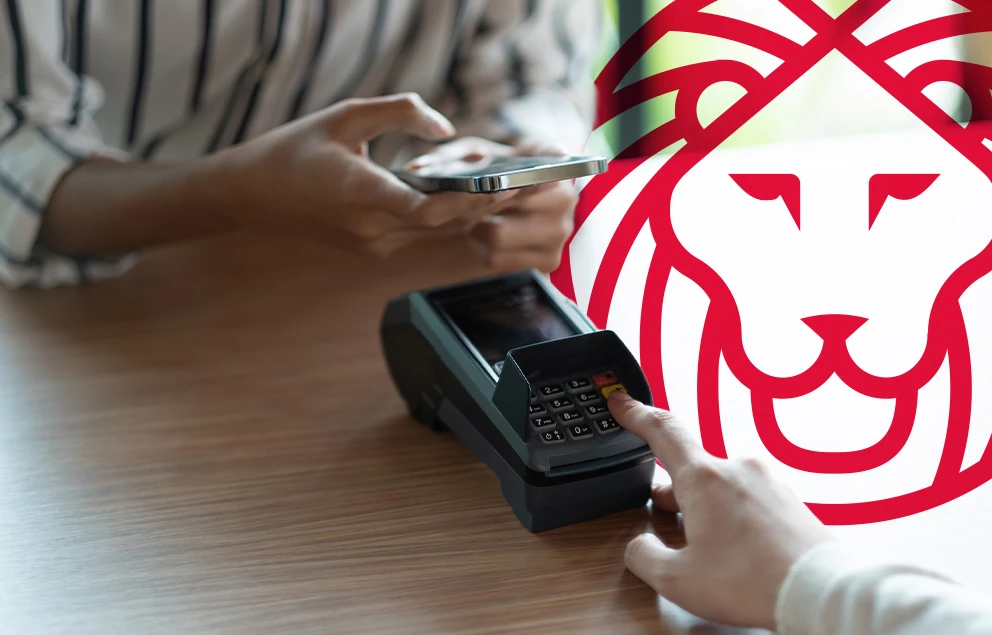
Your phone is now a convenient payment tool, whether you're shopping online or in stores. Just add your Ameris Bank credit and debit cards to your device's mobile wallet with a quick, one-time registration. Just tap or wave your device against the merchant's payment terminal and you're on your way.
Your digital wallet is all you need. Here's how to add your Ameris Bank cards.




Breeze through the checkout line
Make in-store purchases quickly, safely and securely. Use mobile wallet anywhere you see this symbol.
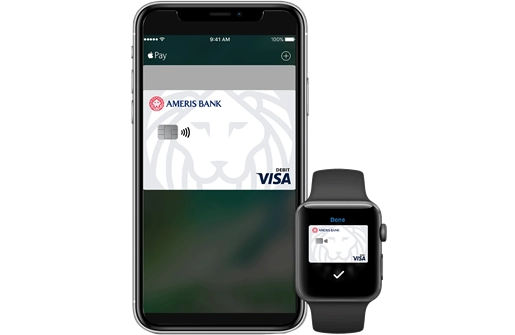
Apple Pay is a system that allows you to store payment information, like your Ameris Bank Debit Card, on your compatible iOS® device and make contactless payments to participating merchants both in store and online.
You can use Ameris Bank Visa® Personal and Business debit cards and your Ameris Bank Credit Card issued by Elan.
Apple Pay uses a secure digital account number invisible to both you and the merchant, keeping your card number and other information safe and secure.
Yes! You can use up to 8 cards with Apple Pay.
Yes, you can add your card to multiple devices.
Apple Pay is available on: iPhone models with Face ID iPhone models with Touch ID, except for iPhone 5s iPad Pro, iPad Air, iPad, and iPad mini models with Touch ID or Face ID Apple Watch Series 1 and 2 and later, Apple Watch (1st generation) Mac models with Touch ID Mac models introduced in 2012 or later with an Apple Pay-enabled iPhone or Apple Watch
You can add your card in 3 simple steps:
Open the wallet app on your device. Tap + Tap Credit or Debit Card Follow the prompts on the screen
Using Apple Pay with Ameris Bank is free of charge.
This is just an extra security step. When prompted, simply enter the one-time passcode sent to you (or call the number provided). Then look for a confirmation message letting you know your card is ready for Android Pay™ or Samsung Pay™.
No, the card image may not be an exact match. Keep in mind this doesn't affect how your card works with Android PayTM.
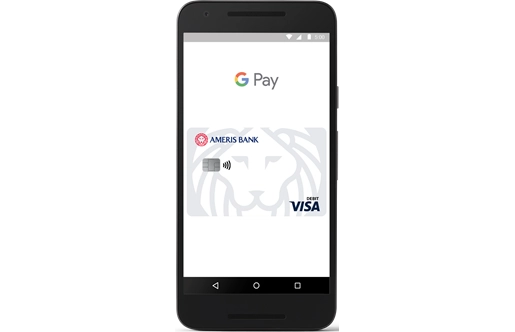
Add an eligible credit or debit card to Android Pay™ by opening the Android Pay™ app on your eligible device. Either use your device camera to take a photo of the card, select a card previously used with Google (if available), or enter the card data manually. Then enter any additional information required, such as your address. For security reasons, an extra verification step may be needed to enable your virtual card.
A virtual card is the digital form of your eligible physical credit and debit cards. When you add your physical card to Android Pay™, it's stored as a virtual card. It will have a unique virtual card number associated only with the mobile wallet and mobile device you're using. Creating a virtual card number does not affect your physical card. You can still use your physical card as you normally would.
Android Pay™ works on most NFC- and HCE-capable devices with Android™ version 4.4 (KitKat) or higher.
At checkout, simply unlock your Android™ device and hold the back of your device near the contactless terminal. Your phone will beep or vibrate, and you will receive a confirmation on screen. To complete the transaction, you may need to sign a receipt or enter your PIN as usual.
No, not all merchants have adopted contactless terminals. Please continue to carry your physical cards to use where contactless payments are not accepted.
Depending on the merchant's policy, you may need to use fingerprint and the contactless reader when instructed by the merchant. When using your mobile device, the merchant will not recognize your physical card but will access the associated virtual card number to credit your return. Returning an item purchased with your mobile device is just like any other return; you will need your receipt (depending on the merchant's policy).
Android Pay™ does not show debit card purchases you made with Android Pay™ on your device. For a complete view of all your debit card transactions, log onto Online Banking or use our Mobile Banking App and select the appropriate account.
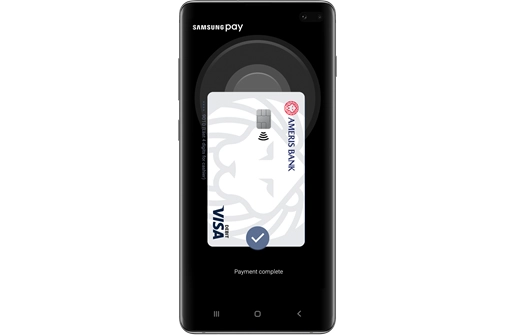
Add your debit card to Samsung Pay™ on the newest Samsung Galaxy devices by opening the Samsung Pay™ app. Either use your device camera to take a photo of the card, or enter the card data manually. Then enter any additional information required, such as your address. For security reasons, an extra verification step may be needed to enable your virtual card.
No, the card image won't be an exact match. Keep in mind this doesn't affect how your card works with Samsung Pay™.
Samsung Pay™ is compatible with the Samsung Galaxy S6, S6 Edge and other select Samsung devices.
Most merchants won't have access to your physical card number; they'll receive the unique virtual card number associated with your credit or debit card.
Just swipe upwards from the bottom of the screen on your mobile device, or launch the Samsung Pay™ app. Choose your payment card. Authenticate, using the fingerprint sensor on your phone, or by entering your Samsung Pay PIN. Then hold your phone or device near the payment terminal to complete the transaction. You may need to sign a receipt or enter your PIN as usual.
The majority of merchants will accept it, since Samsung Pay™ can be used wherever you would swipe your credit or debit card, or wherever contactless payments are accepted. However, you should still carry your physical cards to use where contactless payments are not accepted.
Samsung Pay™ does not show debit card purchases you made with Samsung Pay™ on your device. For a complete view of all your debit card transactions, log onto Online Banking or use our Mobile Banking App and select the appropriate account.
The card or device should be held no more than 1–2 inches (about 4 cm.) away from the contactless symbol on the checkout terminal. Walking by is not enough to trigger a payment from your card.
No. You do not have to physically tap the card or device on the checkout terminal; however, your card or device should be held no more than 1-2 inches (about 4cm.) away from the contactless symbol .
No. Contactless technology requires the merchant to first initiate the payment, and the contactless card or payment-enabled device must be held in close proximity 1-2 inches (about 4 cm.) to the terminal for a transaction to take place.
Yes. Your contactless card or payment-enabled device is safe for a number of reasons:
Just like with a chip card, each transaction is accompanied by a one-time code that securely protects your payment information.
You can’t pay accidentally – your card or device must be within 2.5-5 cm of the terminal for the transaction to occur (and you won’t be billed twice, even if you accidentally tap twice).
* Supported carriers include: AT&T, T-Mobile, U.S. Cellular, Sprint, Verizon Wireless, MetroPCS, and Cricket. Message and data rates may apply. Apple, the Apple logo, iPhone, iPad and App Store are trademarks of Apple Inc., registered in the U.S. and other countries. Android, the Android Logo and the Google Play Store logo are trademarks of Google Inc, registered in the U.S. and other countries.
Ameris Bank has no control over the content or quality of the site you are visiting, and the site may not have the same privacy and/or security practices as Ameris Bank. We encourage you to read the privacy and security policy for the site you are visiting.